![Rosterfy_Logo_White.png]](https://www.rosterfy.com/hs-fs/hubfs/Logos/Rosterfy%20Logos/Rosterfy_Logo_White.png?height=40&name=Rosterfy_Logo_White.png)
There are 3 method to add users to a group.
Method 1: Adding users in bulk from the User list
1. Click Users > Users.
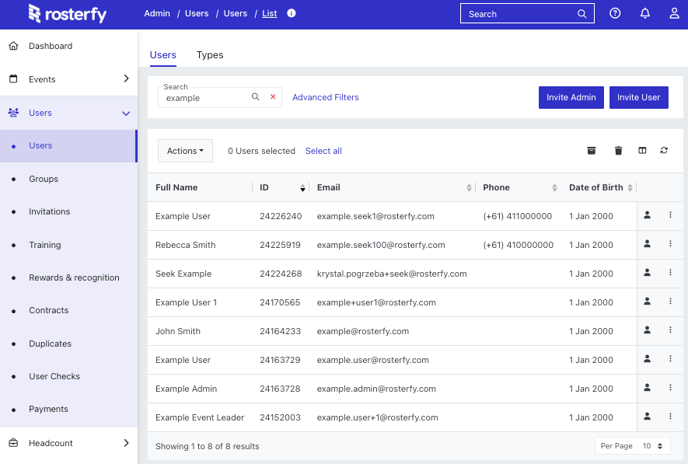
2. Apply any applicable Advanced Filters or select users.
3. Click Actions > Add Users to > User Group.
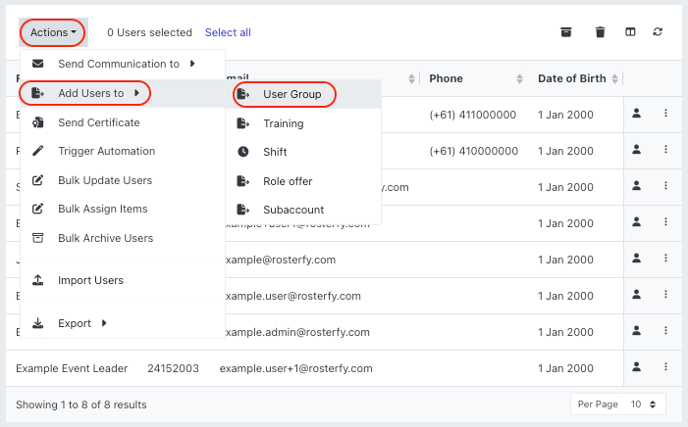
4. Select your group or create a new group and select who it applies to, All Listed Users or Selected Users (Highlighted users).
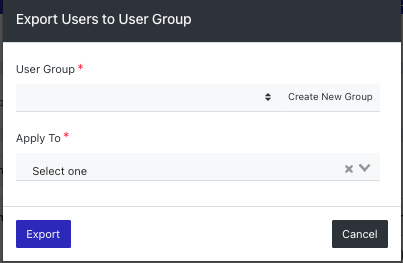
7. Click Export.
Method 2: Adding an individual user to a group
1. Click Users > Groups.
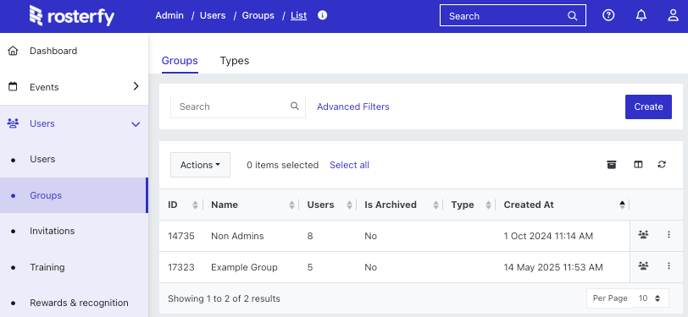
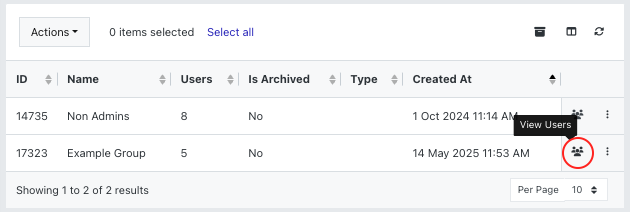
2. Locate the group you would like to add a user to, then click View Users.
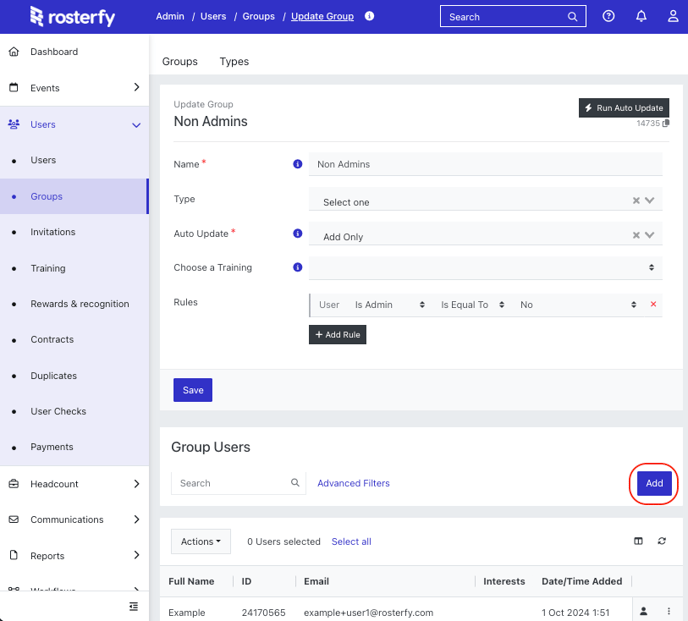
3. Click Add, Select the User and drag and drop them onto the Group Users list.
Method 3: Bulk import users to a group
1. Click Users > Groups.
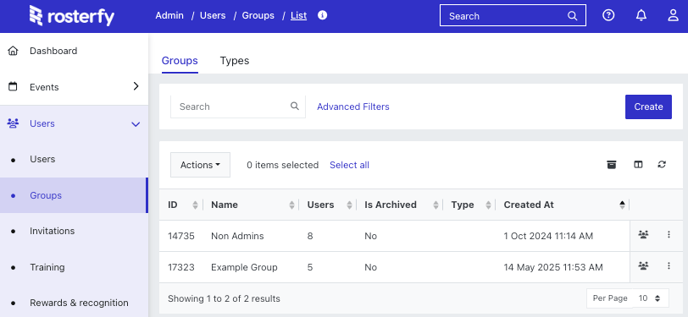
2. Locate the group you would like to import users to, then click View Users.
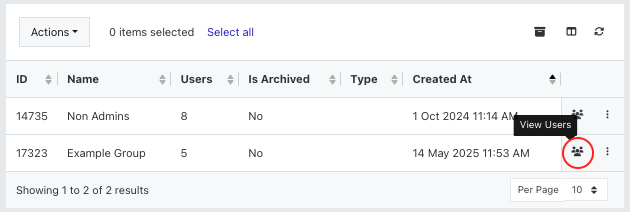
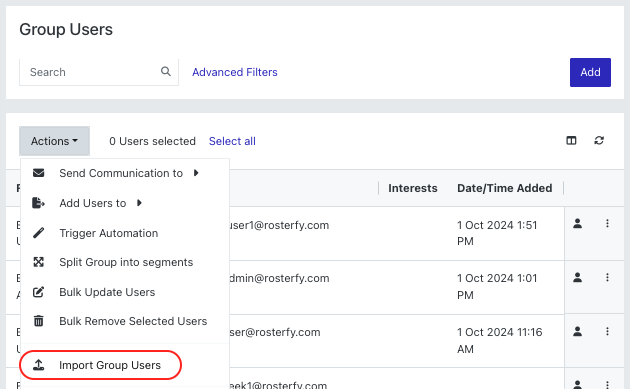
3. Click Actions > Import Group Users.
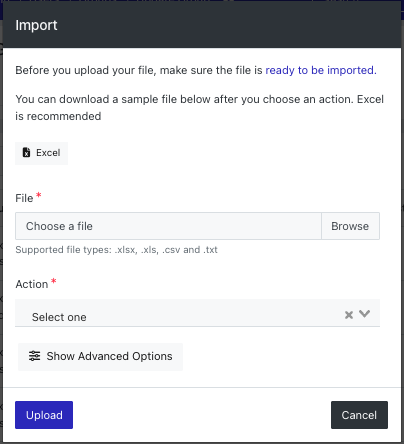
4. Select Create in the action field to add new users, then click Browse to upload a file (The Excel button is a download of a template file). Click Upload, once complete.
5. Select the user id and email column.
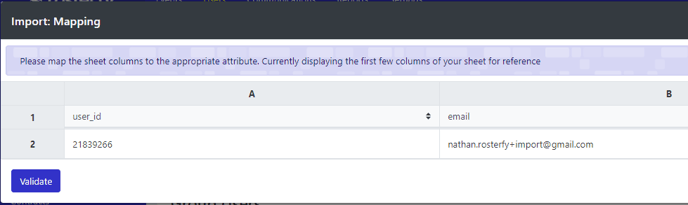
6. Click Validate.
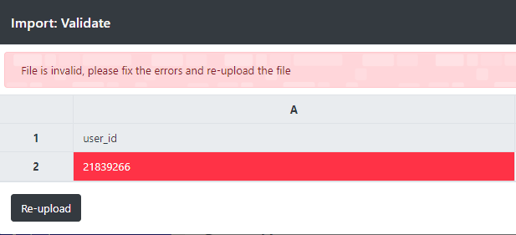
Note:- If the file is incorrect you will receive the below error and the field that needs to be corrected.
- Group import.csv
53 Bytes Download